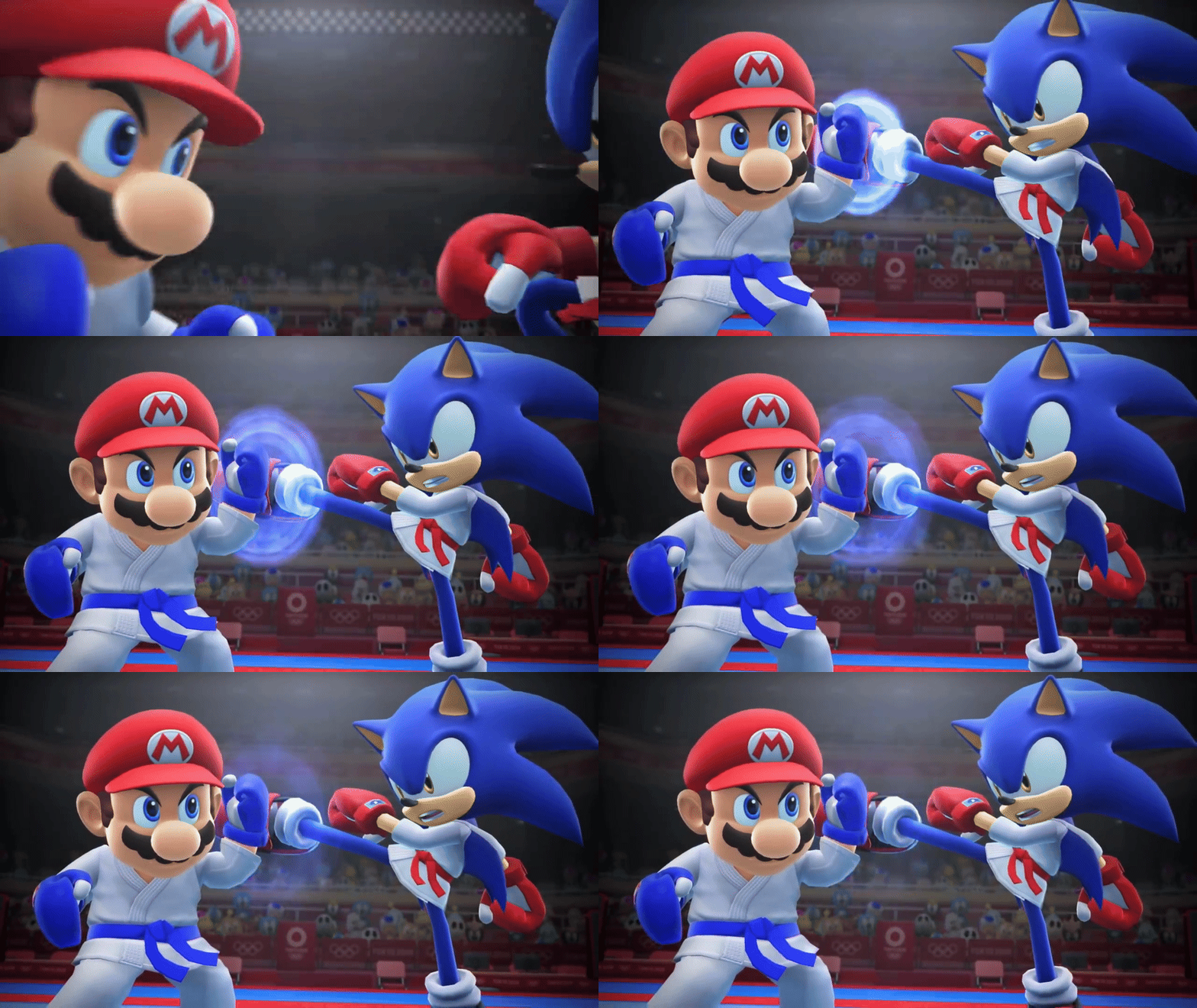
Converting a YouTube video into a gif involves downloading the video either by hand or using third-party software. After that, you’ll need to hunt down another software to transform it into a GIF and ensure it’s of top-notch quality. That’s where Merjek steps in! With just a few clicks, Merjek simplifies the process to make high-quality gifs for your content by eliminating the need to navigate through such obstacles.
Here are three simple steps to turn a YouTube video into a high quality gif:
1-) Go to this gif-maker application on the Merjek platform.

Note: This post is for Merjek 1.0.0 version.
2-) Enter the YouTube video url in the textbox and click the “Get Started” button. You’ll see the video embedded on the website. Below the video, you’ll see the input options such as start/end times, frames per second (fps), speed, width, etc. Select those options based on your preference. Make sure you select the output format as .gif.

Note: Some videos are restricted by its owners to see the embedded video. If that happens, just ignore it and continue with your steps. Make sure you don’t violate any of the copyright issues as well.
3-) Click the “Run” button and you’ll see the gif output below. You can always see what the output really looks like by clicking the “Preview” link. When you click this link, a new tab will appear. In that new window tab, you’ll see the actual video along with its width, height and quality. Repeat the second and third steps until you optimize the quality of the output.

That’s it. Below, you can see how the gif generated from a YouTube video looks like. Note that you should be signed in if you don’t want to see the Merjek logo on the bottom left in the output.

 Merjek
Leave a comment